Handy card, Easy entry
We offer the option to receive a digital membership card via email. You can use the card straight from the email – just present it to the receptionist who will scan it to sign you in.
For quick and easy access, we have some suggested steps below that you can follow to create a shortcut on your mobile.
What type of phone do you have?
How would you like to access your card? Please select an option…
Using the Membership Card Directly
There are a few ways that you can create a shortcut to your digital membership card from your home screen. Due to the many different types of android devices, we are unable to offer step-by-step guides for all phones.
The Google Drive method below should be a similar process regardless of your phone. Most Andorid phones will have Google Drive preinstalled. The File Manager method may vary depending on the app you are using, however the general process is usually similar.
Google Drive Method
Most Android devices will come with Google Drive pre-installed. The easiest way to create a shortcut to the file is therefore to save the attachment from the email to Google Drive. There are various ways to save an attachment to Google Drive.
- If you use Gmail for your email, then you may already have an ‘Add to Drive’ button next to the attachment
- If you use a third-party app for email, opening the attachment might give you the option to open with Google Drive. When opened in Google Drive, there will be an ‘Add to Drive’ button in the top right corner
- If neither of the above applies to you, you may have to manually save the file to your downloads folder and then upload it from there to Google Drive.
Once the file is saved, locate and open the file in the Google Drive app.
You can then click the menu in the upper right-hand corner and select ‘Add to Home Screen’, then ‘Add Automatically’.
File Manager Method
If you’d rather not – or can’t – use Google Drive, some phones will have a built-in file manager – for example, Samsung’s My Files. These file managers often offer a similar option to create a home-screen shortcut. Check if your device has a pre-installed app called something like ‘My Files’, ‘File Manager’, or ‘File Browser’ etc. If you locate the digital membership card in there, you will often find after pressing an holding that there is an option to ‘create shortcut’ or ‘add to home screen’.
Third-Party Apps
One final option would be to use a third-party app that will allow you to create a shortcut to a file. You can search your app store for things like ‘File Manager’ or ‘Shortcut Creator’ to find one of these apps.
While we have not tested and do not offer any endorsements to these, the below third-party android apps claim to support adding file shortcuts to your home screen.
Adding the membership card to google wallet
Below, we’ll walk you through adding your digital CYZ card to your Google Pay wallet for easy access. You can click a step for additional guidance and a helpful screenshot if needed.
1. Open the digital card attached to the email, and take a screenshot of it.
The digital card is attached as a PDF to the email you have received. Open the attachment and take a screenshot to quickly save it to your gallery.
In most cases, a screenshot can be taken by briefly pressing and releasing the power and home buttons, or if you don’t have a physical home button, the power and volume down buttons together.
2. Open the Google Wallet App, and select the plus button in the lower right hand corner.
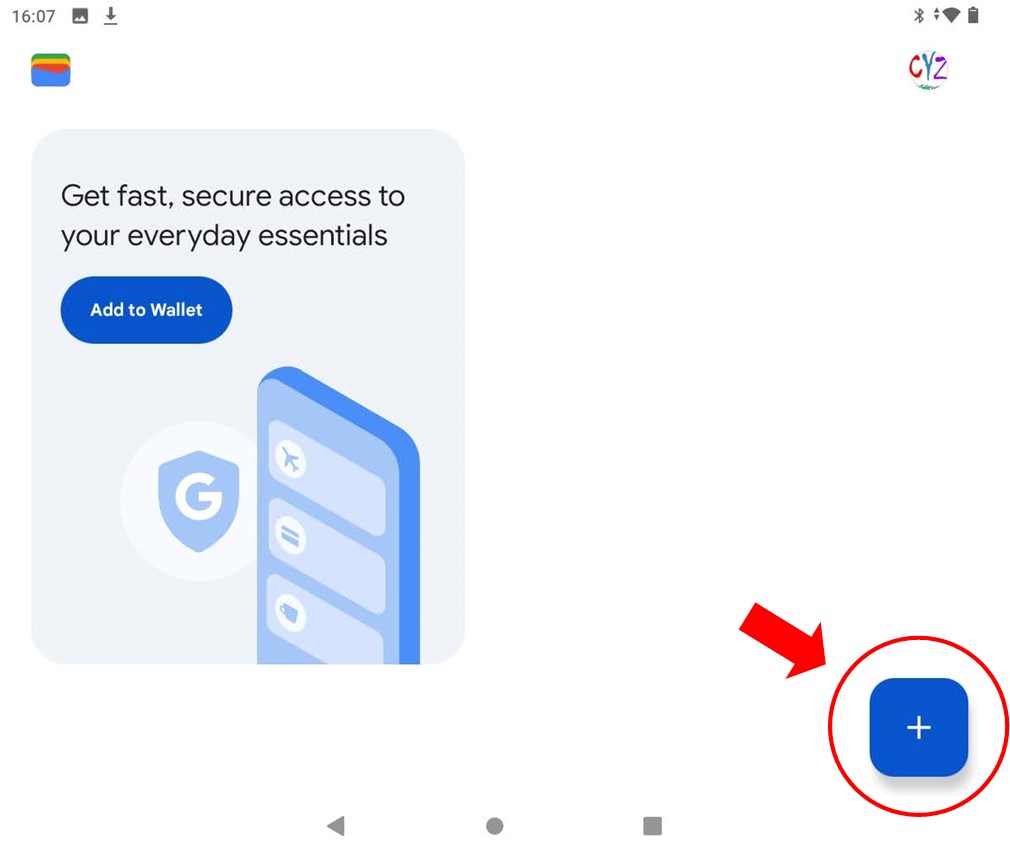
If you do not already have the Google Wallet app, you can download it for free from the Play Store.
In the lower right hand corner of the Google Wallet app, press the plus icon to add a new card to your wallet.
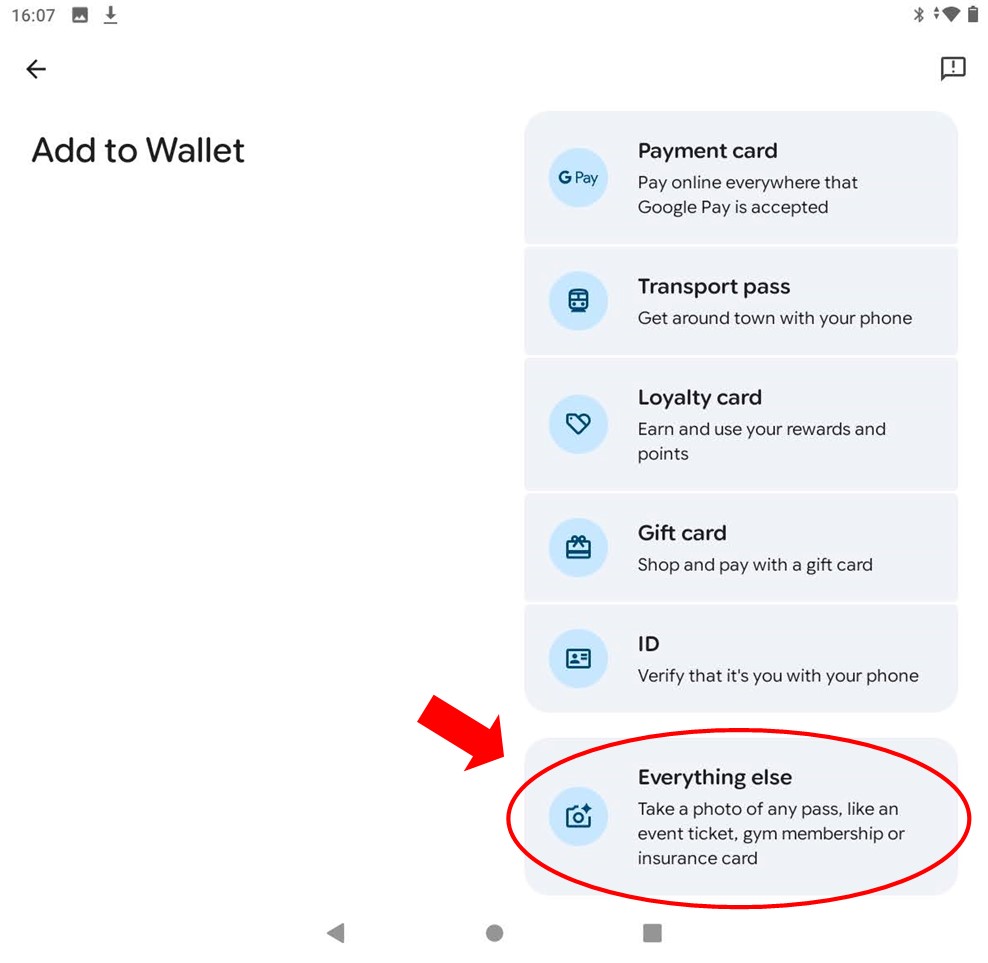
3. Select 'Everything Else'.
4. Your camera will load. Instead of taking a photograph, select the gallery, and find the screenshot of your digital membership card.
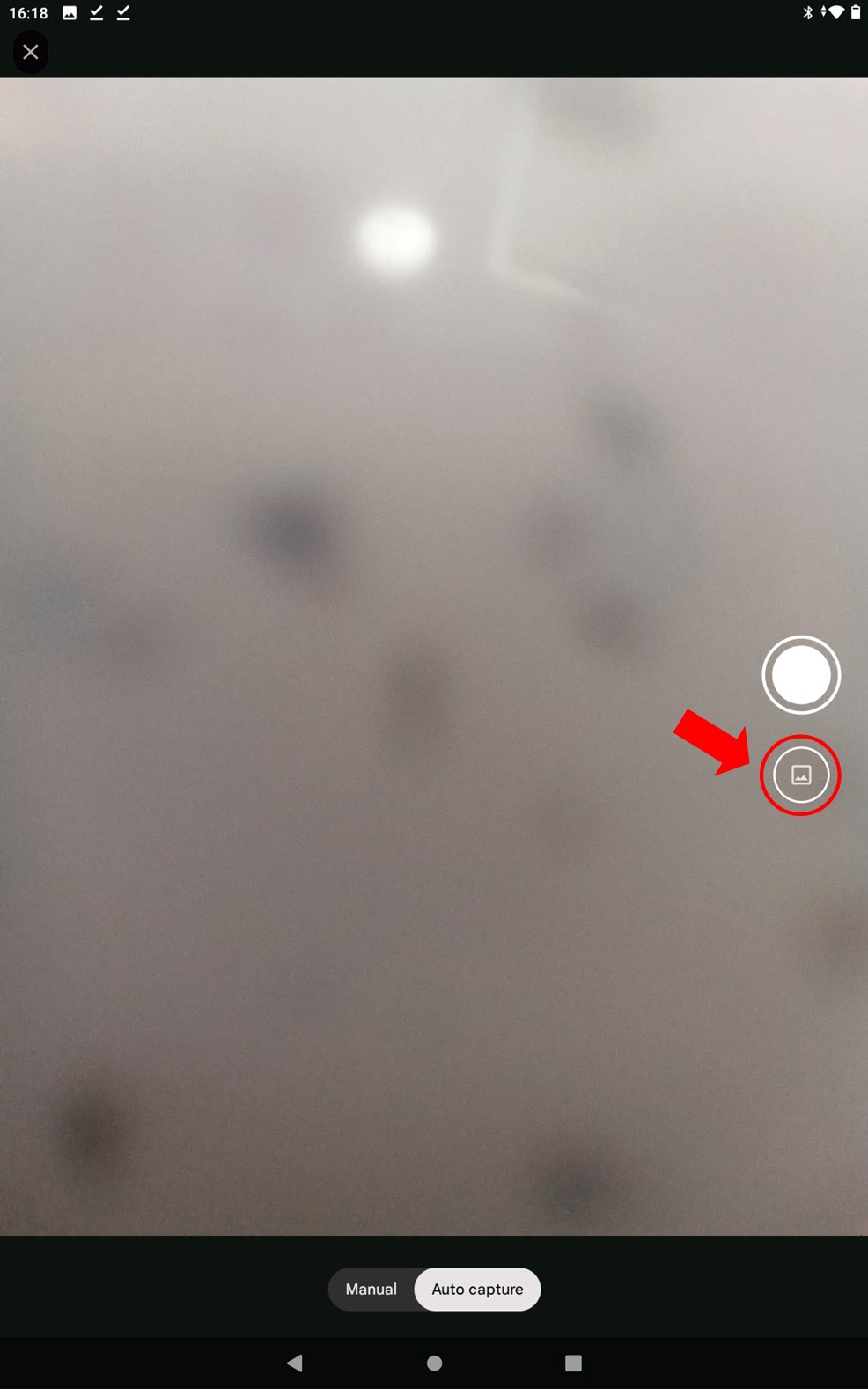
5. You can crop the screenshot to select only the card using the 'Crop and Rotate' feature. Press next once done.
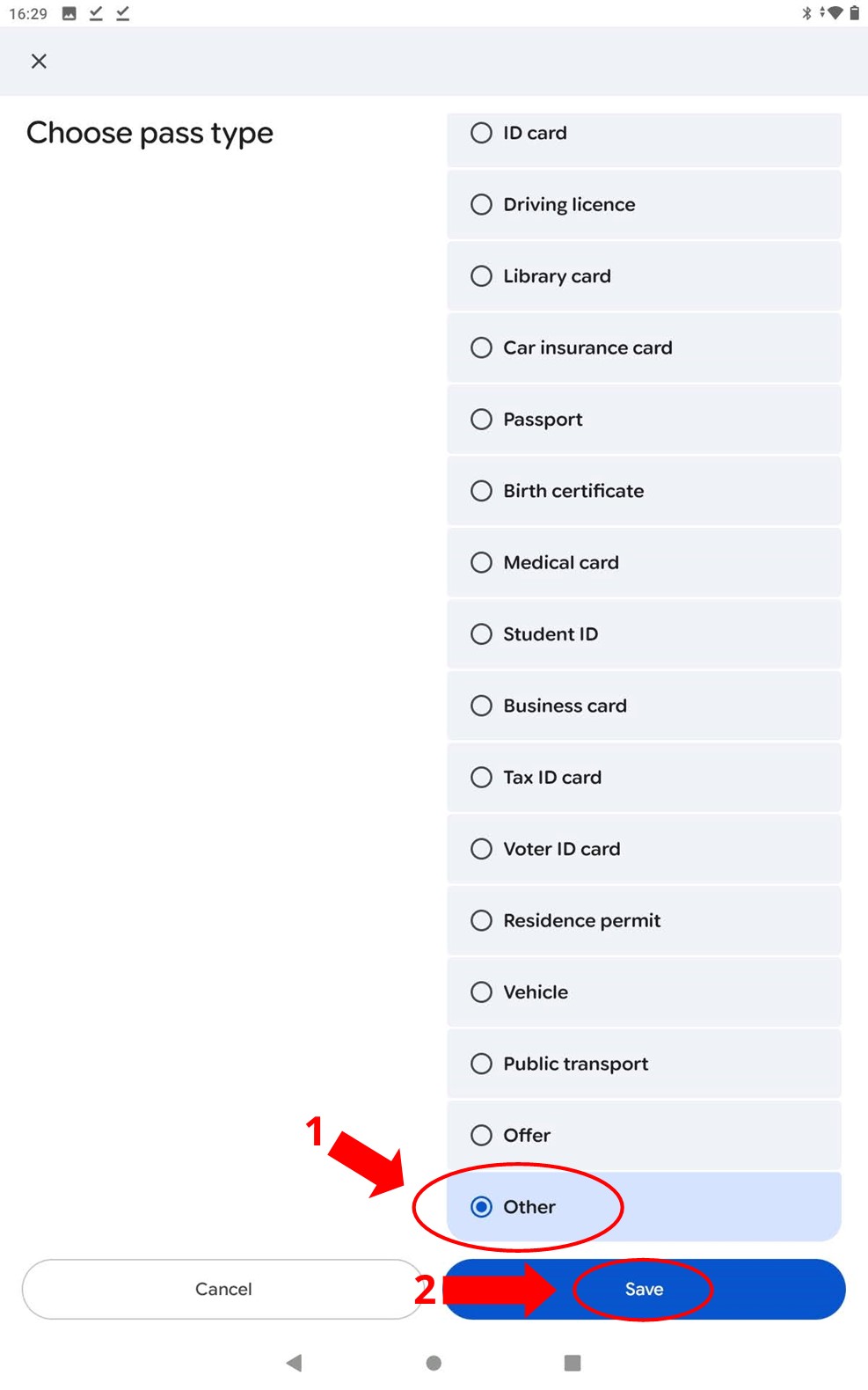
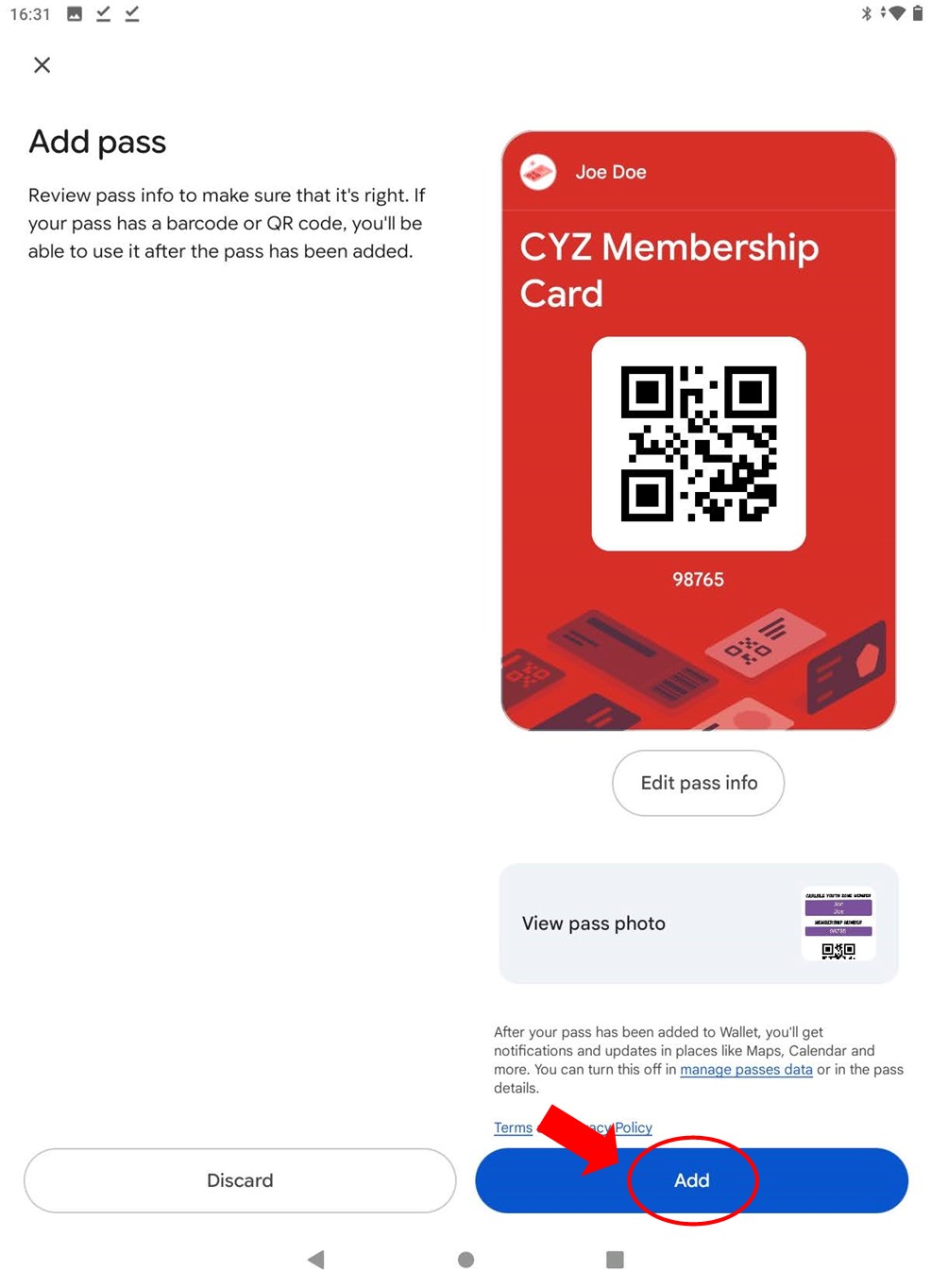
7. You can name the pass anything you like - this is how it will show when you go to select it.
Saving a shortcut to your digital CYZ card on an iOS device
Below, we’ll walk you through saving your digital CYZ card to your iOS device for easy access. You can click a step for additional guidance and a helpful screenshot if needed.
1. Open the digital card attached to the email, and press the Share button.
If you haven’t yet received a digital membership card, please speak to a member of the reception team who can organise sending you one.
2. Under the share menu, select 'Save to Files'
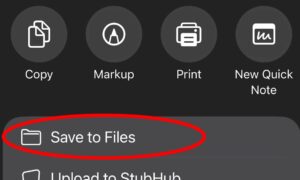
This step saves the digital card to your device storage from your emails.
3. When 'files' opens, press the save button
At this stage, you can choose a folder to save it into if you would like it stores in a specific folder on your phone
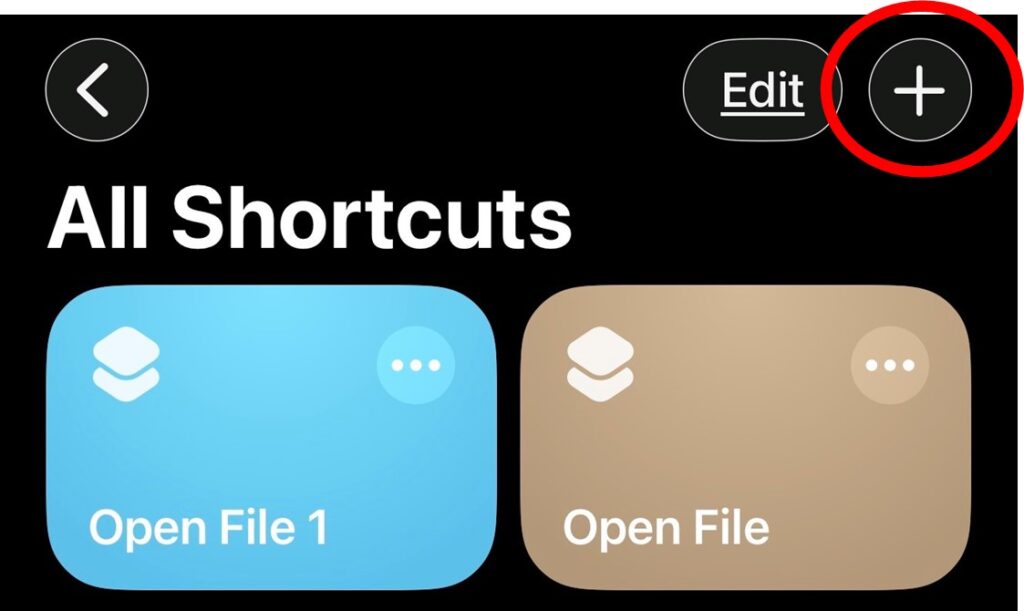
4. Open the 'Shortcuts' app and press the '+' button to add a new shortcut

5. In the 'Search Actions' box, type 'Open File', and select 'Open File'
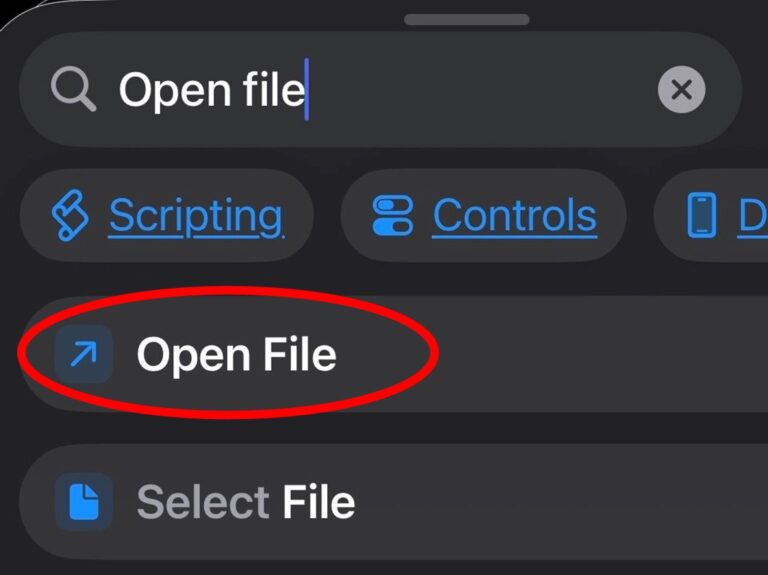
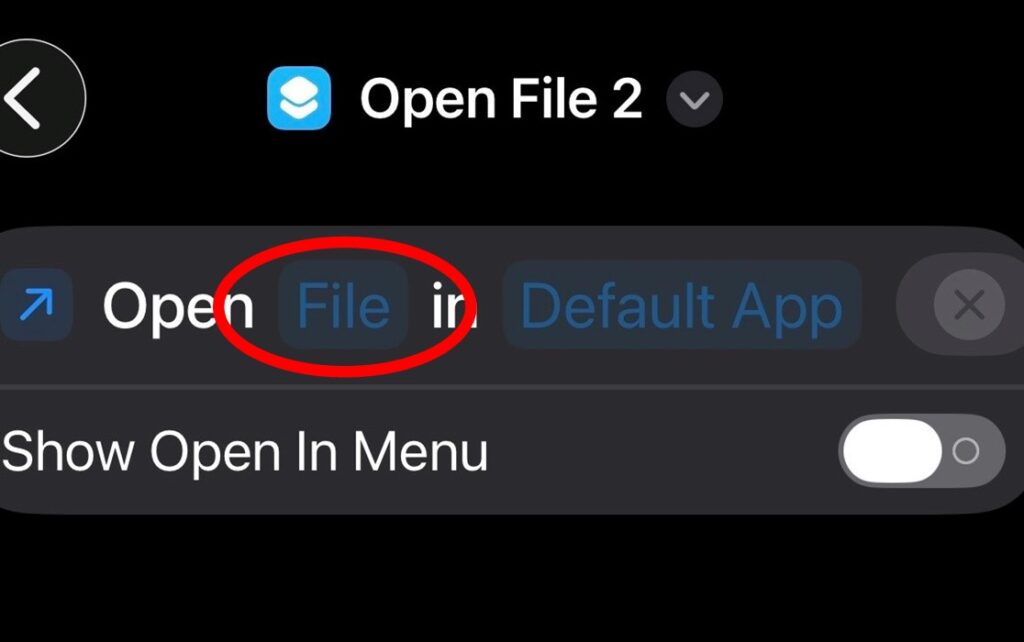
6. Touch 'File', and select your digital membership card
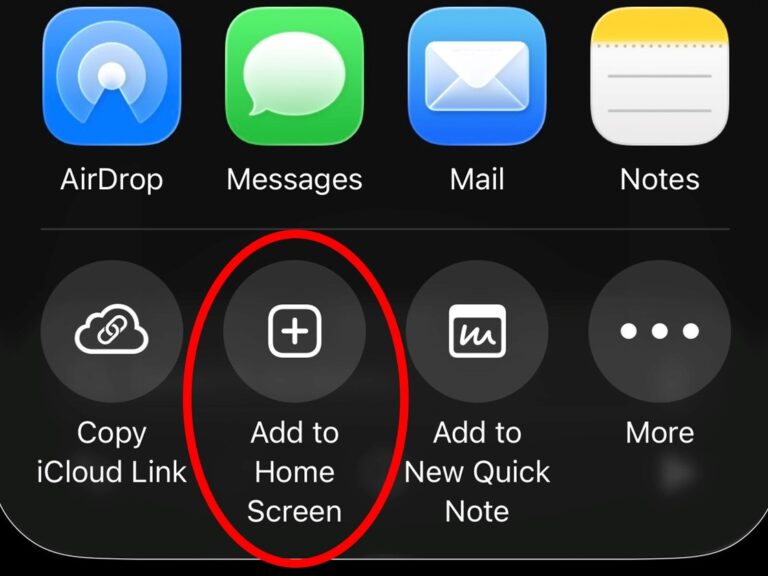
7. Press the share menu and select 'Add to Home Screen' .
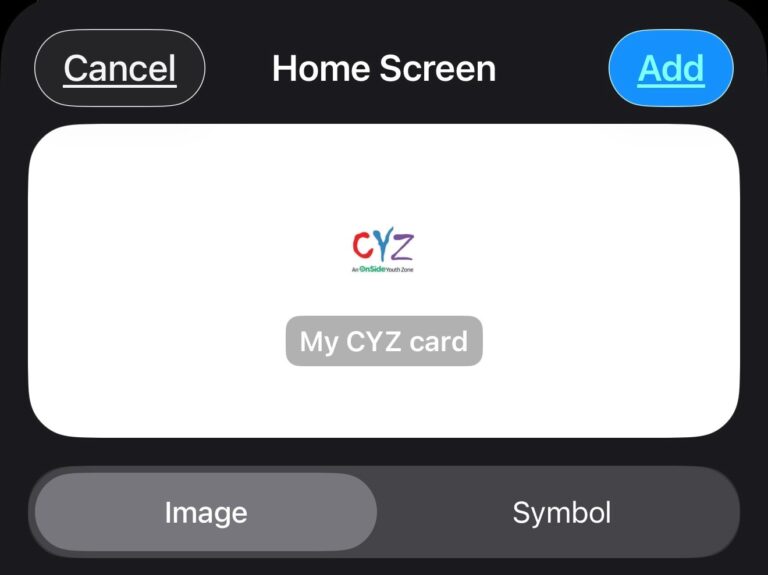
8. Press 'Add' in the top right corner, and the shortcut should appear on your home screen
Signing In
Now you have this configured, whenever you come to CYZ you just need to press the icon on your home screen and your digital membership card will open. Present it to the receptionist who will scan it to sign you in.